
Troubleshoot Endpoint Enrollment
Use this guide when a computer does not appear in Pharaoh after the operator sends an install code, or when the person at the computer cannot reach This computer is connected.
The goal is to decide whether the problem is the install code, the local enrollment step, network reachability, or post-enrollment inventory freshness.
Before You Start
Section titled “Before You Start”- You need an operator account that can manage endpoints.
- You need the hostname, expected user, support ticket, or install code used for the enrollment attempt.
- You need a way to contact the person at the computer if they are completing the local steps.
- If the code may have been shared too broadly, be ready to revoke it and create a replacement.
Step 1: Confirm The Expected Enrollment Path
Section titled “Step 1: Confirm The Expected Enrollment Path”Start by asking which path the computer used:
Install code: the recipient entered the grouped code from IT on the localConnect this computerscreen.IT admin sign in: an administrator signed in on that computer, chose the organization if needed, added optional details, and selectedConnect this computer.
Do not switch to manual backend URLs, organization IDs, YAML files, or CLI bootstrap steps for the primary customer path. If the normal path fails, first work through the visible enrollment states.
Step 2: Inspect The Recent Install Code
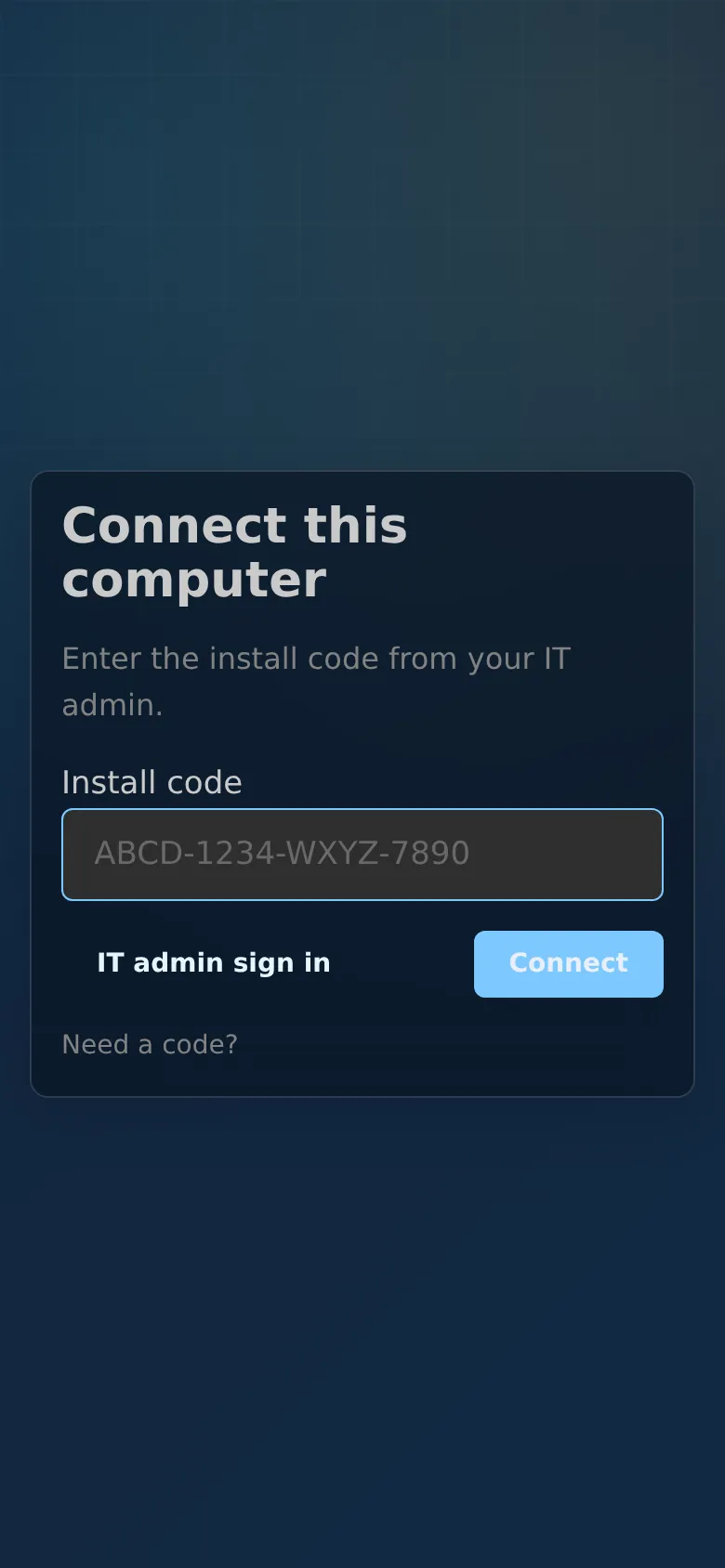
Section titled “Step 2: Inspect The Recent Install Code”Open Endpoints, then select Install Endpoint Agent.
In Recent install codes, find the code by age, purpose, owner, location, support ticket, or expected hostname.
Decision points:
- If the code is active and unused, ask the person at the computer to try the same code again.
- If the code is expired, revoked, already used, or failed, create a new install code and send the new message.
- If the code was sent to the wrong person or device, revoke it and create a replacement for the correct recipient.
- If the code shows a connected endpoint, open that endpoint before assuming enrollment failed.
Step 3: Check What The Computer Shows
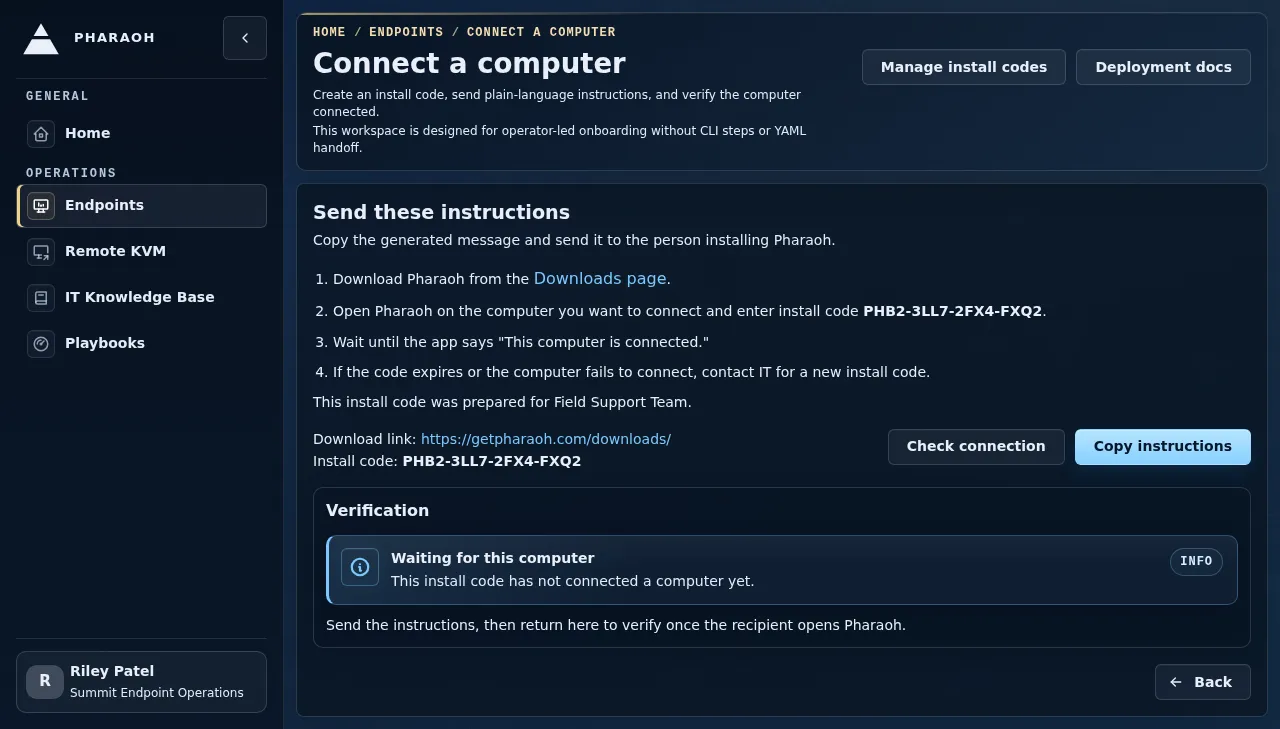
Section titled “Step 3: Check What The Computer Shows”Ask the person at the computer what the Pharaoh local enrollment screen says.
Expected states:
Connect this computermeans the computer is not enrolled yet.Enter the install code from your IT admin.means they are on the code path.Sign in with your Pharaoh administrator account to connect this computer.means they are on the admin sign-in path.This computer is connectedmeans local enrollment has completed and the next check belongs in the web console.
Failure states:
- Expired, revoked, or used code: create a new code from
Install Endpoint Agent. - Cannot connect to Pharaoh: confirm the computer has network access, then retry with the same still-active code.
- Wrong organization during admin sign-in: have the administrator choose the intended organization before connecting the computer.
- User never reaches the local enrollment screen: confirm Pharaoh was installed from
https://getpharaoh.com/downloads/and opened after installation.
Step 4: Verify The Endpoint Record
Section titled “Step 4: Verify The Endpoint Record”Return to Endpoints.
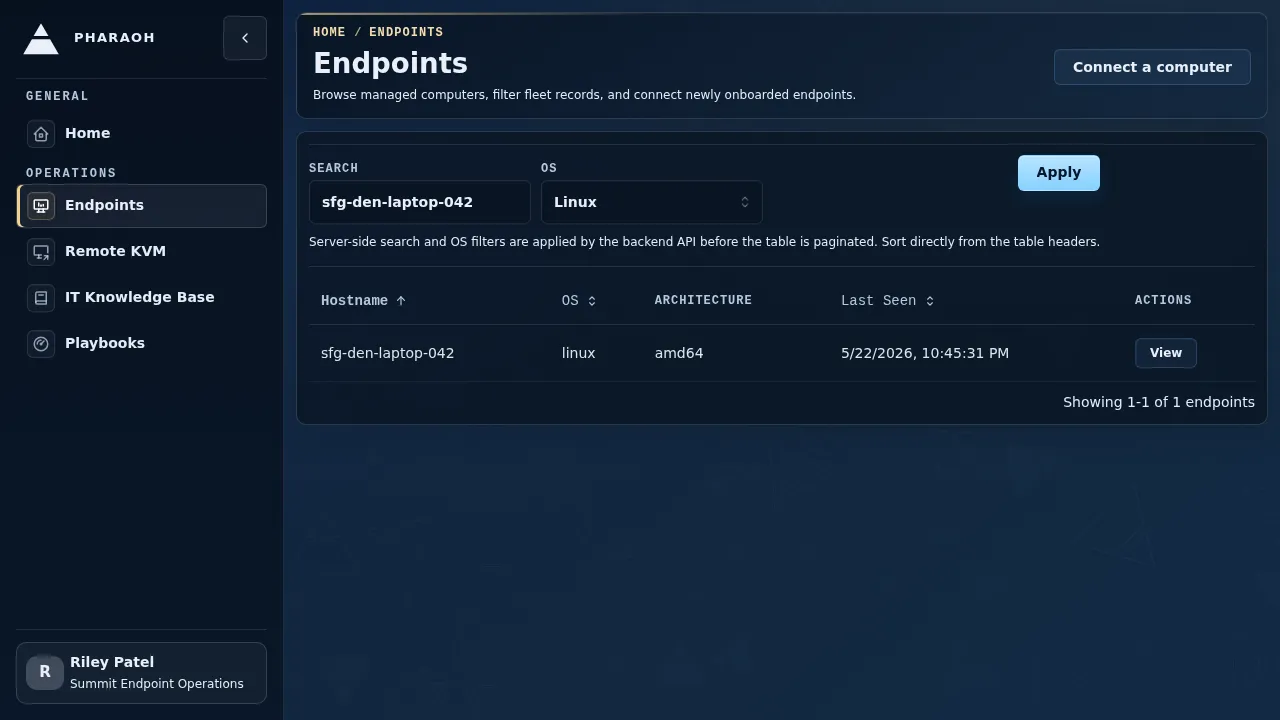
Use the endpoint list to search by:
- hostname
- computer ID, if you have it
- operating system hint
- pre-registration details that help identify the device
Open the matching endpoint and inspect:
- the hostname and identity panel
- operating system, architecture, and agent version
Last Seen- the
Diagnosticstab when collection freshness or collector errors matter
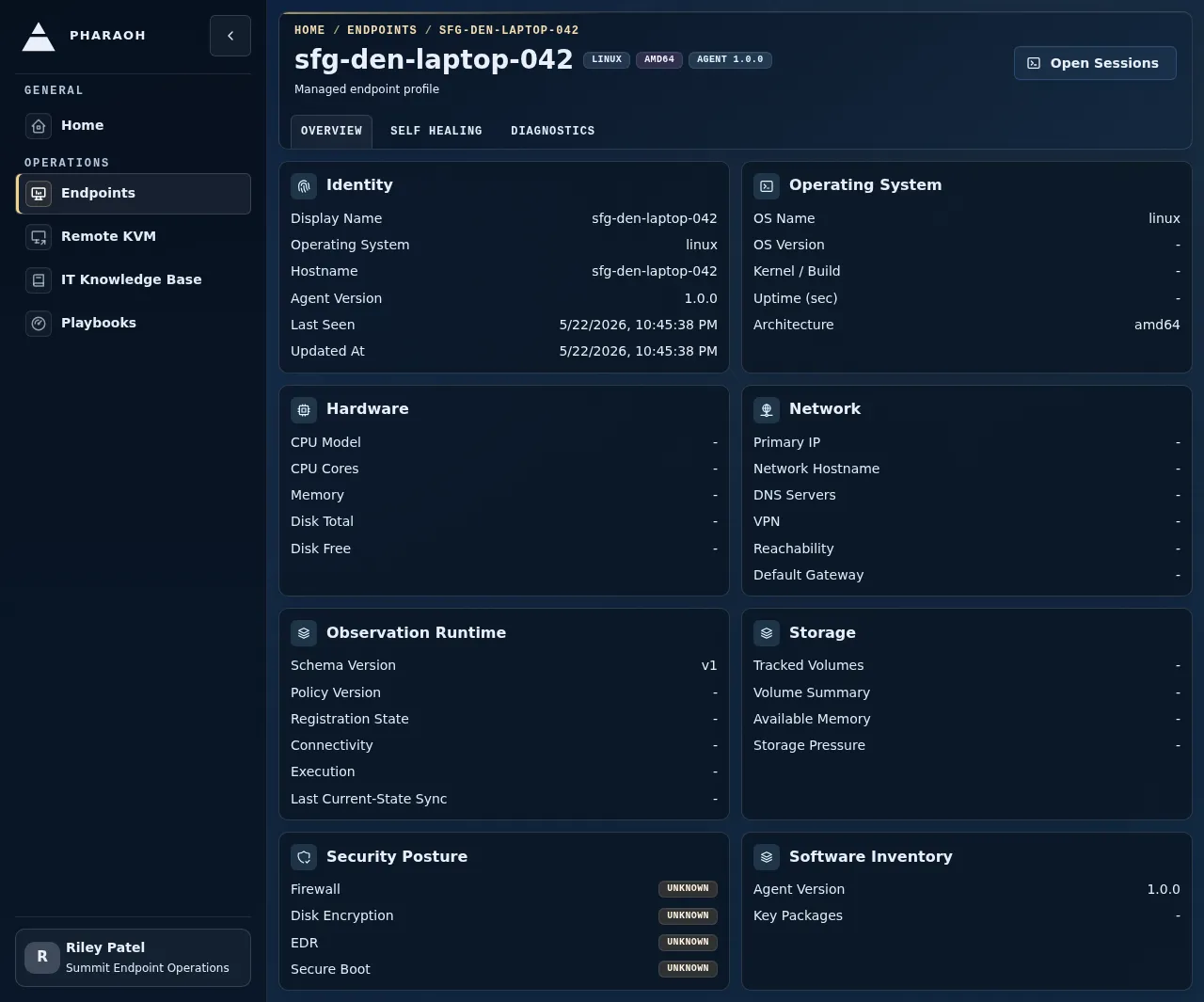
If the endpoint exists but Last Seen is old, treat the enrollment as complete and move to Respond to stale or offline endpoints.
Step 5: Decide The Next Action
Section titled “Step 5: Decide The Next Action”Use the visible evidence to choose one action:
- Code problem: revoke the bad code, create a new code, and send only the new instructions.
- Local user stuck: keep them on the local
Connect this computerflow and ask for the exact message they see. - Network problem: retry after the computer has a working connection to Pharaoh.
- Inventory problem: search the endpoint list and open the details page before re-enrolling the same machine.
- Successful enrollment: confirm
This computer is connected, the endpoint appears inEndpoints, andLast Seenis recent.
Success Criteria
Section titled “Success Criteria”Enrollment is resolved when:
- the install code is either consumed by the intended endpoint or revoked
- the local computer shows
This computer is connected - the endpoint appears in the
Endpointslist - the endpoint detail page shows plausible identity, OS, architecture, agent version, and recent
Last Seen