

Endpoints And Live View
The Endpoints area supports two connected operator jobs:
- inventory and current-state review from the endpoint list and detail page
- live investigation from the endpoint session workspace
Where It Lives
Section titled “Where It Lives”Use Endpoints in the Operations navigation group.
The main routes are:
/endpointsfor the endpoint inventory/endpoints/<endpoint-id>for endpoint details/endpoints/<endpoint-id>/sessionsfor endpoint-scoped session context
Step 1: Find A Machine In The Endpoint List
Section titled “Step 1: Find A Machine In The Endpoint List”The list page is the starting point for choosing the right machine.
Use it to:
- search by hostname, computer ID, or OS hint
- filter by operating system
- sort by hostname, OS, architecture, or
Last Seen - open
Connect a computerto create install codes, send thegetpharaoh.comdownload instructions, and verify whether the current code connected a computer - open an endpoint detail page
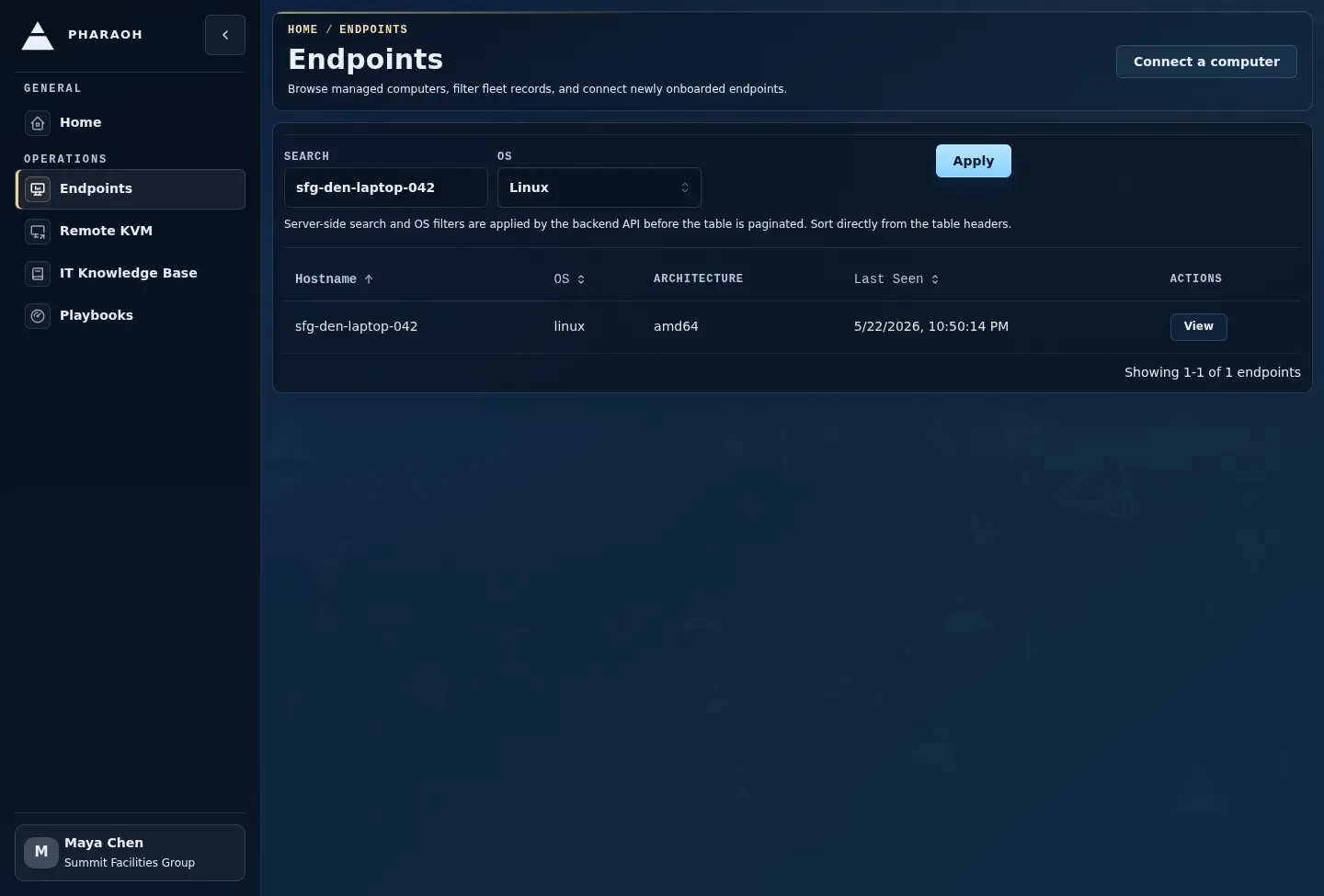
Older install codes are managed from the separate Install codes page behind Manage install codes in the connect flow.
When no rows match, Pharaoh keeps you on the same page and shows an explicit empty state. Clear filters, broaden the search term, or confirm enrollment before choosing another endpoint.
Step 2: Review Endpoint Details
Section titled “Step 2: Review Endpoint Details”The endpoint detail page is the static current-state view for one machine.
Use the header to confirm:
- hostname
Computer ID- OS, architecture, and agent version
Last SeenOpen Sessions
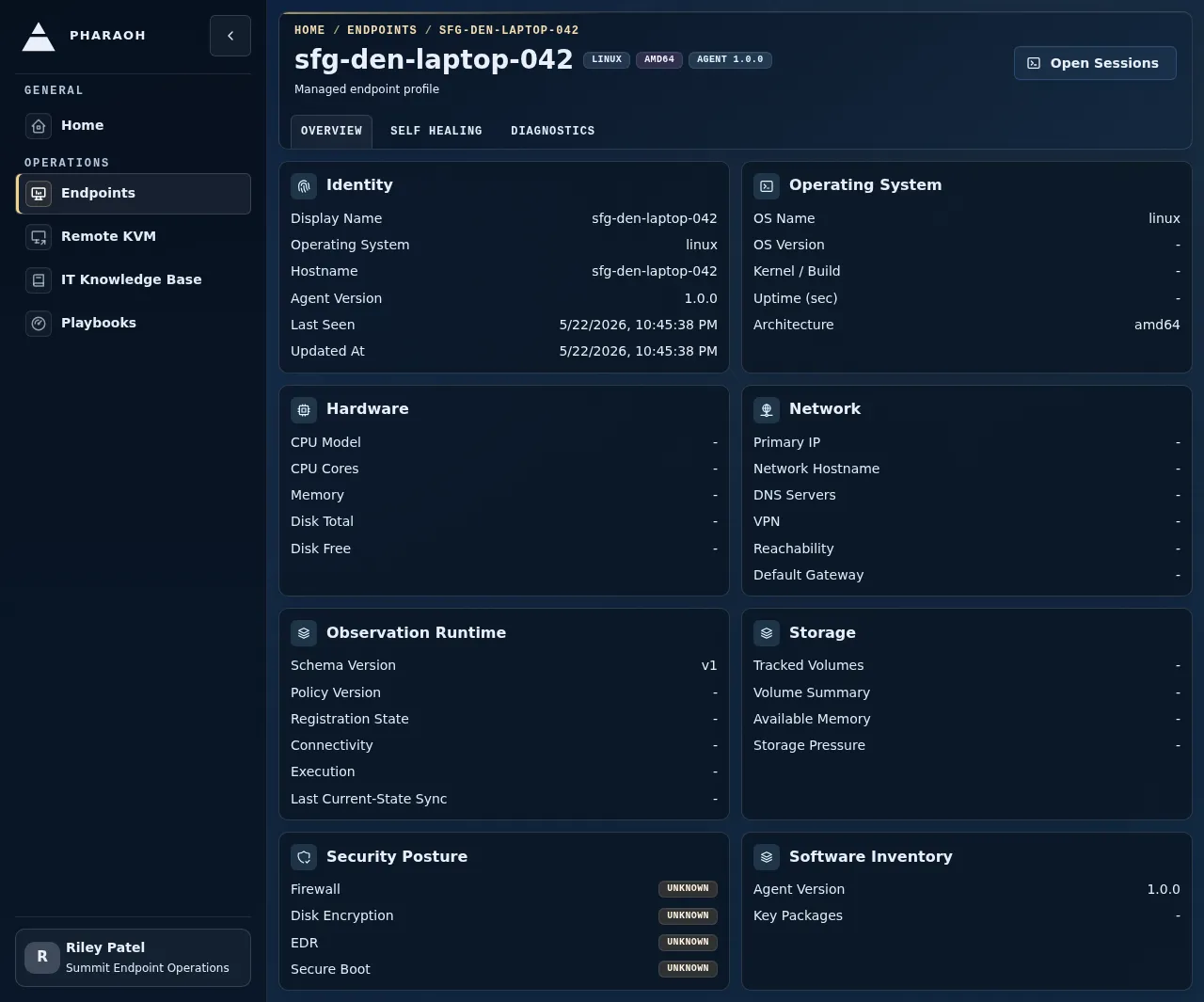
Use this page when you need to understand what Pharaoh already knows before starting interactive work.
Step 3: Check Sentinel And Detail Tabs
Section titled “Step 3: Check Sentinel And Detail Tabs”The Sentinel panel summarizes self-healing context for the endpoint. It can show latest status, summary, Last run, duration, version, policy, active session or thread links, pending escalations, and endpoint knowledge document metadata.
The tab set breaks endpoint state into:
OverviewSelf HealingDiagnostics
Use Self-healing from the Sentinel panel to open the endpoint self-healing page. Use History when you need Sentinel history for the endpoint.
Step 4: Decide Static Details Or Live View
Section titled “Step 4: Decide Static Details Or Live View”Stay on endpoint details when the operator needs:
- inventory facts
- collector freshness
- Sentinel state
- security, software, or diagnostic summaries
- proof that an endpoint is stale before attempting live work
Move to live view when the operator needs:
- a guarded conversation with the endpoint
- fresh frame or transport evidence
- commands or remediation under policy
- a session worklog for the investigation
Step 5: Open Live View From The Session Workspace
Section titled “Step 5: Open Live View From The Session Workspace”The live screenshot-style context does not live on the endpoint detail page. It appears in the endpoint session workspace after Open Sessions.
That workspace includes:
Agent worklogwith turn-grouped conversation and execution historyFollow-upfor the next operator promptLive endpoint intelligencewith latest frame state, evidence ledger, safety posture, and lifecycle controls- recent-session recovery
- session controls such as
Send turn,Stop active turn, andClose session
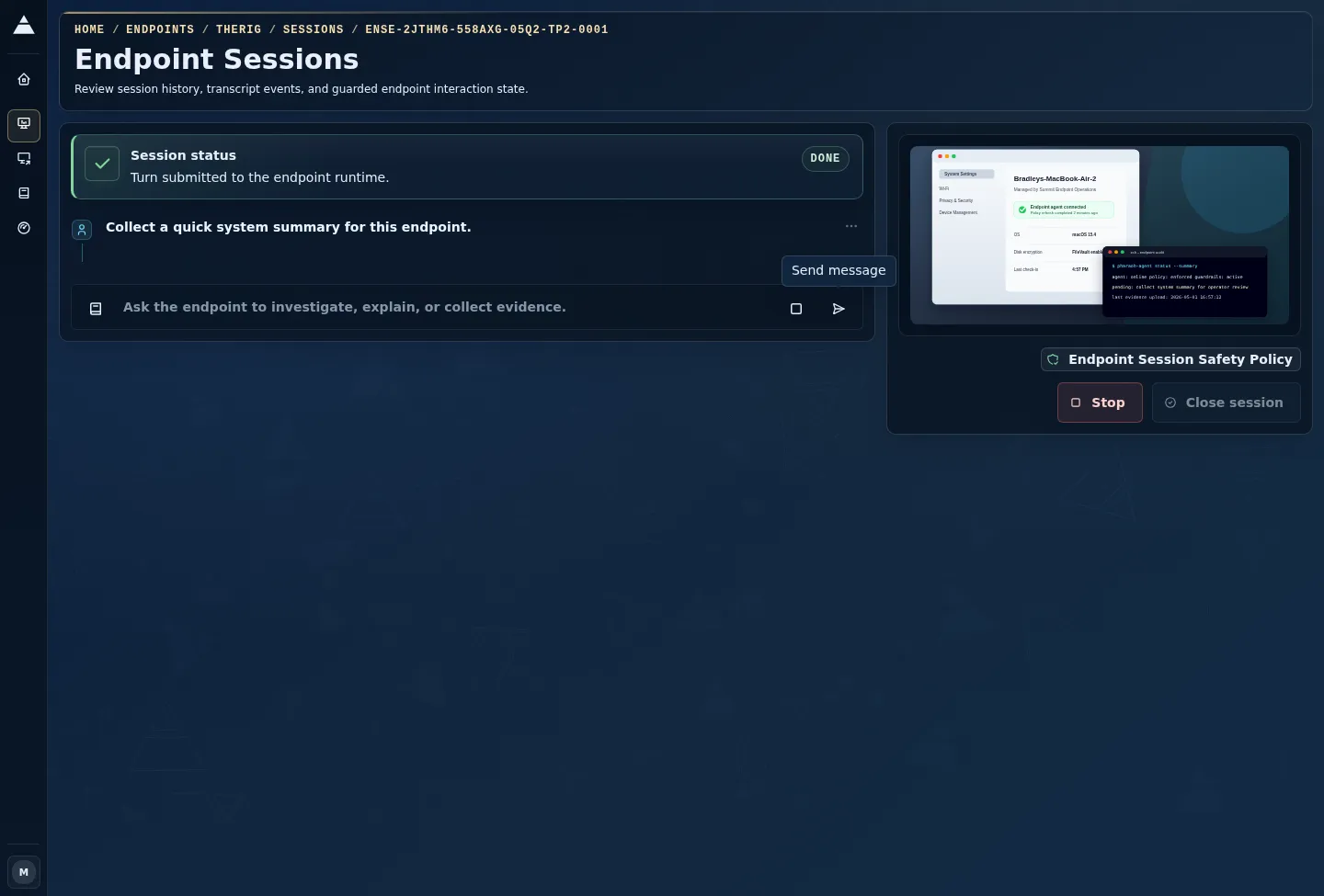
Treat Endpoints as the inventory and detail surface. Treat the session workspace as the live view surface attached to that endpoint.
Step 6: Interpret Stale Or Missing Live Evidence
Section titled “Step 6: Interpret Stale Or Missing Live Evidence”A missing frame, stale frame, waiting transport, or disabled send control does not prove the endpoint is healthy or unhealthy. It only describes the current live-session evidence.
Use this order of operations:
- Compare the live workspace state with endpoint
Last Seen. - Check
Diagnosticsfor stale collectors or domain errors. - Check Sentinel for recent failures, stale checks, or active self-healing ownership.
- Decide whether to wait, stop the active turn, close the session, or route the incident outside Pharaoh.