

Account And Organization
This page explains the two account-context pages that sit behind the user menu: User Profile and Organization Settings.
New or invited users may see Organization Onboarding before these pages are available. Onboarding collects required personal profile fields and required organization profile fields, then holds the organization until billing is active.
Why These Pages Matter
Section titled “Why These Pages Matter”Operators usually open these pages for confirmation, not for daily browsing. They are the fastest way to answer:
- Who am I signed in as?
- Which organization is my current session using?
- Do I have the right organization context before I start a task?
- Who else belongs to the active organization?
Where To Find Them
Section titled “Where To Find Them”Open the user menu in the authenticated shell.
From there you can open:
User ProfileOrganization Settings
The same menu also shows the current organization and any other organizations you can switch into.
If onboarding is still incomplete for the active organization, Pharaoh sends protected account routes back to /onboarding. Complete mandatory setup first, then return to the user menu for normal account review.
Use this order when you are checking account context for the first time:
- Confirm the current organization name in the user menu.
- Open
User Profileand verify the signed-in identity. - Open
Organization Settingsand verify the organization record and members.
User Profile
Section titled “User Profile”User Profile is the signed-in identity page.
What it shows today:
Display NameEmailUser IDActive Organization IDSession State
Use this page when you need to confirm that you are signed in as the expected user, or when you need to confirm the organization attached to the current session before continuing into the rest of the console.
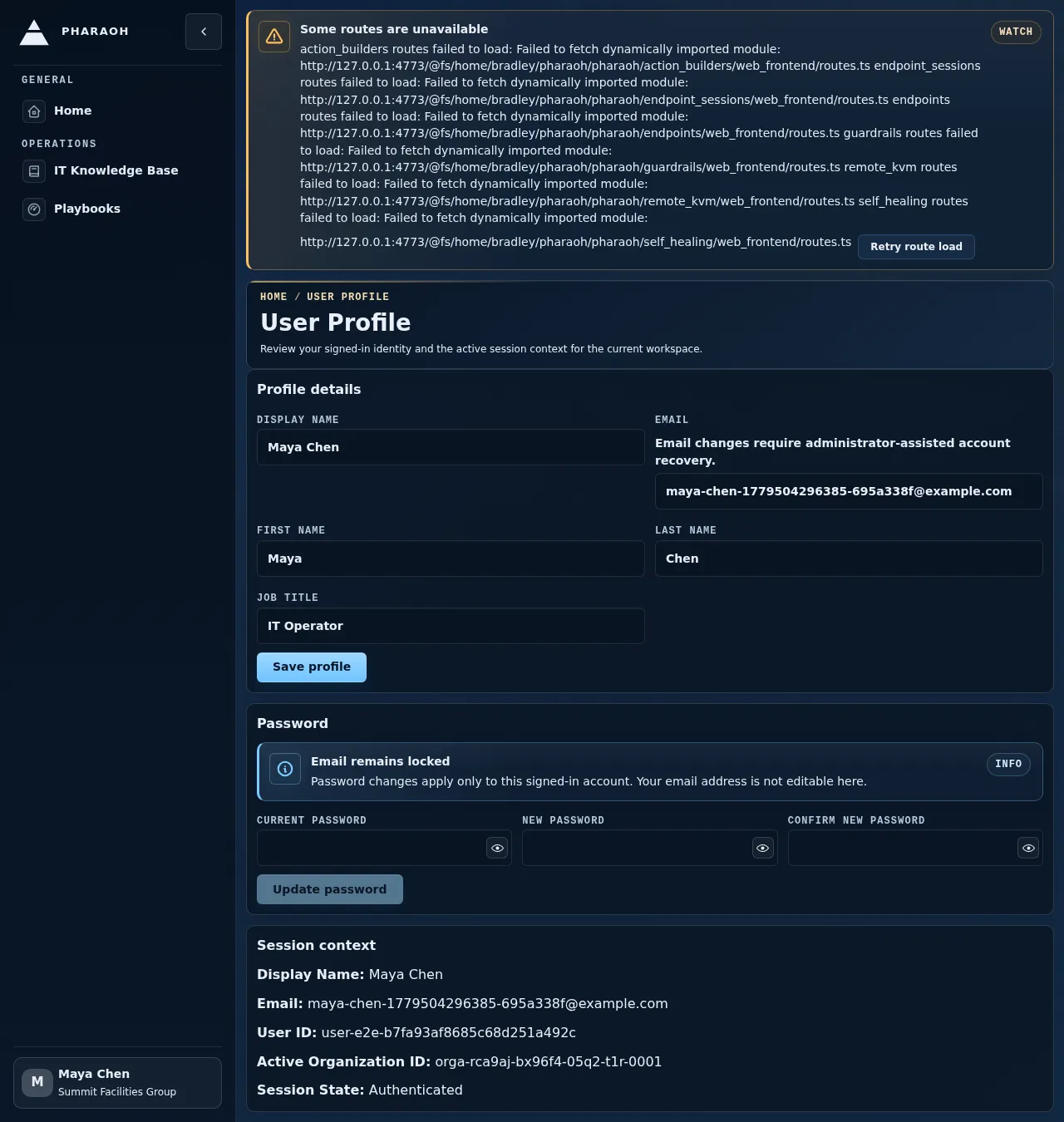
Read this page from top to bottom:
- Check
Display NameandEmailagainst the account you intended to use. - Copy or compare
User IDonly when support or audit work needs the exact user record. - Check
Active Organization IDbefore creating endpoint data, policy records, or knowledge content. - Confirm
Session StateisAuthenticatedbefore troubleshooting any downstream page.
Organization Settings
Section titled “Organization Settings”Organization Settings is the active-organization detail page.
What it shows today:
- organization name
- organization ID
- created and updated timestamps
- a member table for the active organization
If no active organization is attached to the current session, Pharaoh shows a clear empty state: No active organization is available in the current session. In practice, that means you should switch organizations from the user menu and then reload the page.
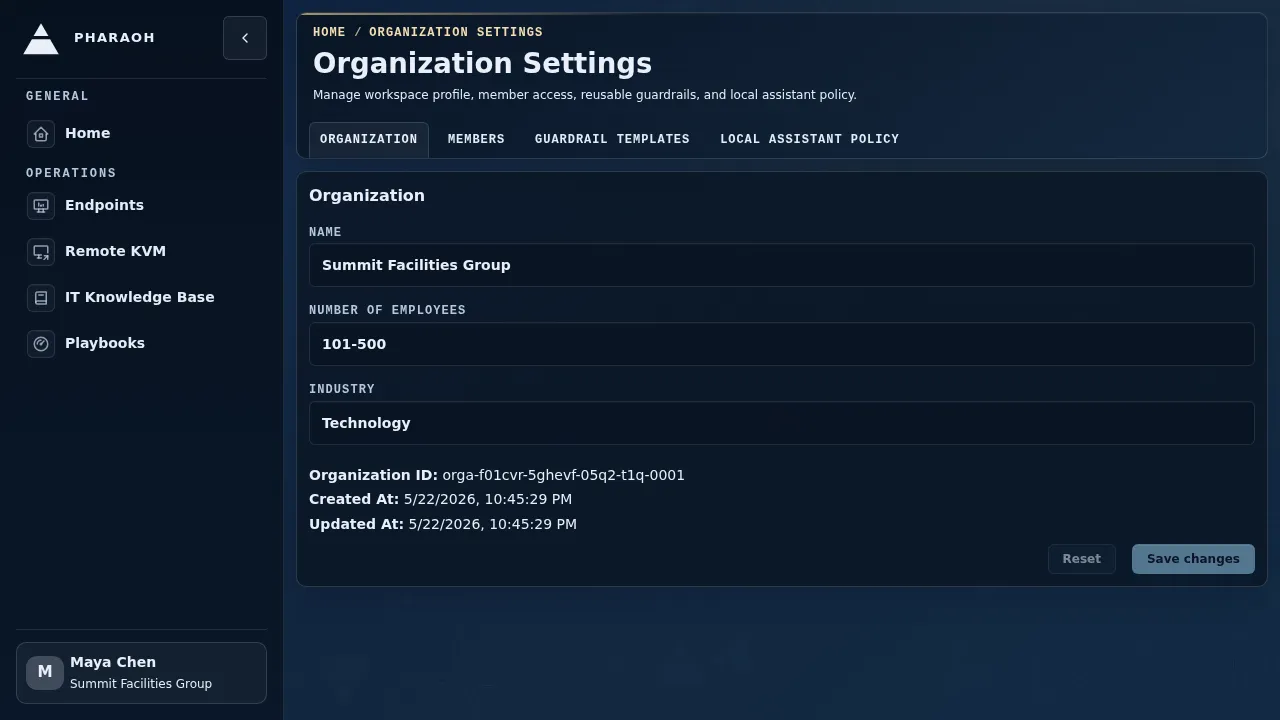
Use the page in two passes:
- In
Organization, confirm the name and ID match the tenant or workspace you expected. - In
Members, filter by name or email when you need to confirm whether a teammate belongs to the active organization. - Use the sort and row controls when the member table grows beyond the first page.
- Treat unexpected members or a wrong organization ID as a context issue and switch organizations before continuing.
Operator Checklist
Section titled “Operator Checklist”Check these items before starting work that depends on organization scope:
- onboarding is complete for the active organization, or you are intentionally still in the onboarding flow
- the user menu shows the right
Current Organization User Profileshows the expectedActive Organization IDOrganization Settingsloads the expected organization name- the member list matches the team or tenant you expect to manage