

Self-Healing And Sentinel
Self-healing helps IT operations teams keep endpoint recovery work moving without giving automation unlimited authority. Use it to see which endpoints are healthy, which ones need attention, what Pharaoh tried, and where a human approval or rejection is required before work continues.
The main operator jobs are:
- open endpoint-specific self-healing health and pending escalation context
- open endpoint-specific Sentinel history before approving risky work
- review endpoint-scoped automation request and policy context
- confirm that the endpoint returned to a known-good or intentionally deferred state
Where It Lives
Section titled “Where It Lives”Open an endpoint, then select the Self Healing endpoint tab.
The main routes are:
/endpoints/<endpoint-id>/self-healingfor the endpoint self-healing Status view inside the endpoint detail shell/endpoints/<endpoint-id>/self-healing/sessionsfor linked recovery sessions/endpoints/<endpoint-id>/self-healing/sentinelfor active Sentinel provenance and source/endpoints/<endpoint-id>/self-healing/sentinel-runsfor Sentinel run history/endpoints/<endpoint-id>/self-healing/activityfor the paginated endpoint self-healing activity timeline/endpoints/<endpoint-id>/self-healing/knowledgefor the endpoint knowledge document
Endpoint details also include a Sentinel panel. Use it for a quick status read before opening the endpoint-scoped self-healing workspace.
Endpoint Sentinel Panel
Section titled “Endpoint Sentinel Panel”The endpoint detail page shows a Sentinel panel between the endpoint identity summary and the endpoint detail tabs.
The panel can show:
- Sentinel status, such as
Passed,Failed,Timeout,Invalid output,Policy denied,Runner error,Stale, orNot configured - the latest summary text
Last run,Duration,Version, andPolicy- links to an active self-healing session or agent thread when one is projected
- a pending escalation count
- endpoint knowledge document status and length
Use this panel when you need a fast answer to whether the endpoint has recent Sentinel context before opening deeper self-healing history. For approval work, stale or missing Sentinel context is a reason to slow down and inspect the endpoint page instead of approving from the queue alone.
The panel is also usable on a phone during on-call review. The same evidence remains visible: status, summary, run time, policy, active session or thread, pending escalation count, and knowledge document status.
Before approving from this context, confirm:
- The endpoint identity matches the ticket, alert, or user report.
Last runis newer than the incident context you are acting on.- The summary explains why Pharaoh needs help.
- The policy and version match the expected guardrail boundary.
- Pending escalations and endpoint knowledge metadata are consistent with the request.
Endpoint Self-Healing Detail
Section titled “Endpoint Self-Healing Detail”The Endpoint Self-Healing workspace is the operational record for one endpoint. It stays inside the endpoint detail page, so the endpoint header and endpoint tabs remain visible while you move through self-healing history. Open it before approving work when the request could change endpoint state, require elevated access, or affect a business-critical user.
The workspace has seven endpoint-scoped subviews in the left rail: Status, Sessions, Sentinel, Run history, Escalations, Activity, and Knowledge. It does not include a top-level Refresh button. Use the detailed subviews for history and review, and use Regenerate Sentinel from the Sentinel view when a Sentinel needs a new candidate.
Across these views, Pharaoh uses readable titles, statuses, sources, and friendly dates as primary labels. Internal ids may appear as supporting context or links, but they should not be the main thing you have to read first.
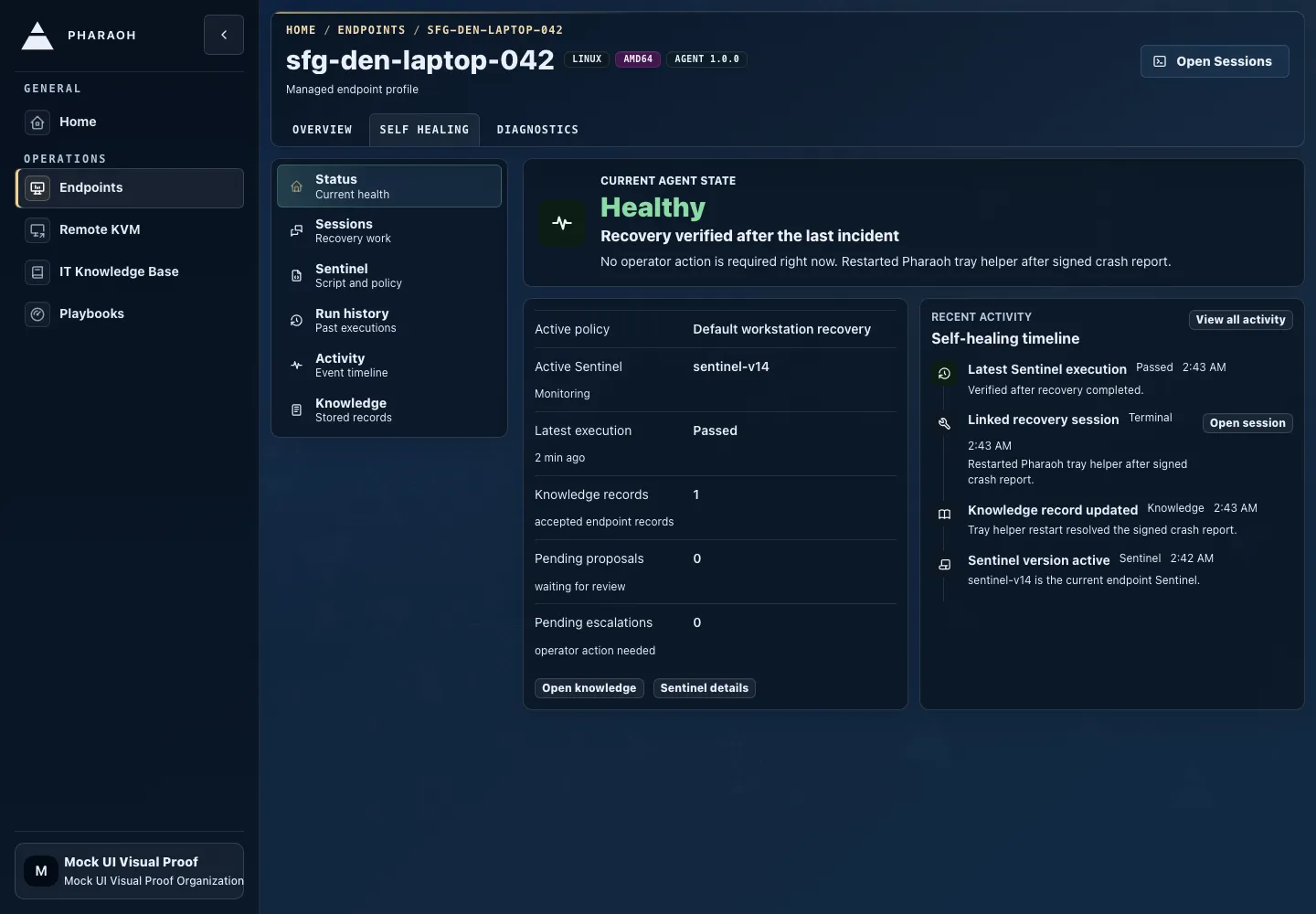
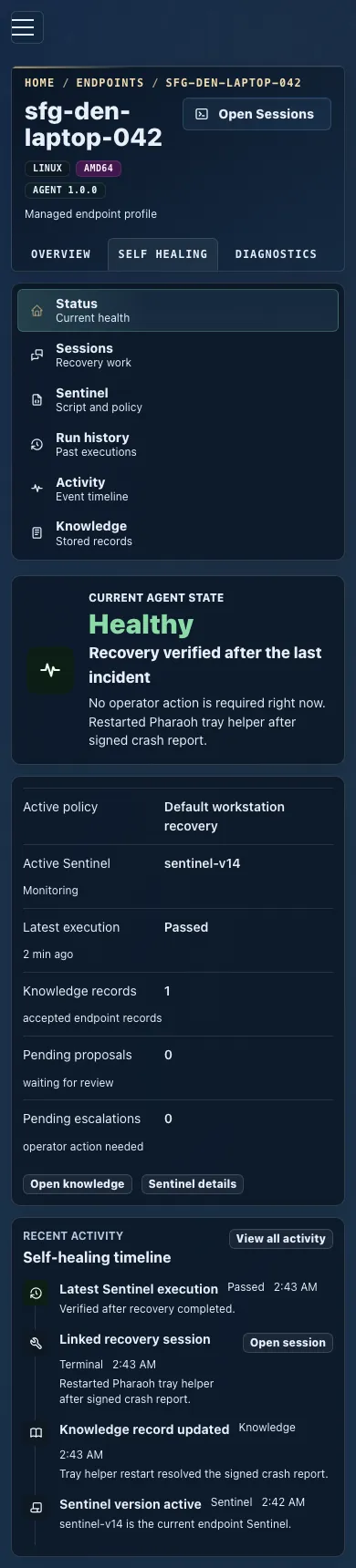
Status
- current self-healing and Sentinel state
- operator-readable facts for policy, active Sentinel, latest run, endpoint knowledge document metadata, and pending escalations
- recent activity preview
- links into the detailed subviews when a fact needs inspection
Use Status first. It answers whether the endpoint is healthy, whether automation needs action, and whether the current policy and Sentinel context are recognizable without exposing raw database ids as primary labels.
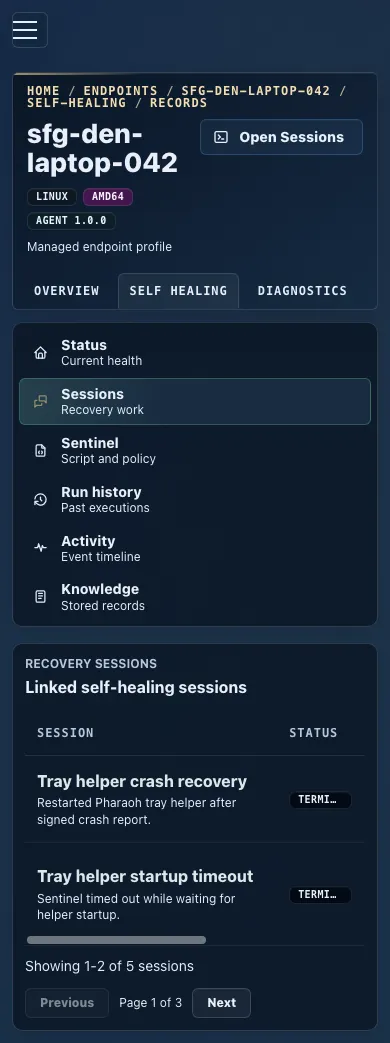
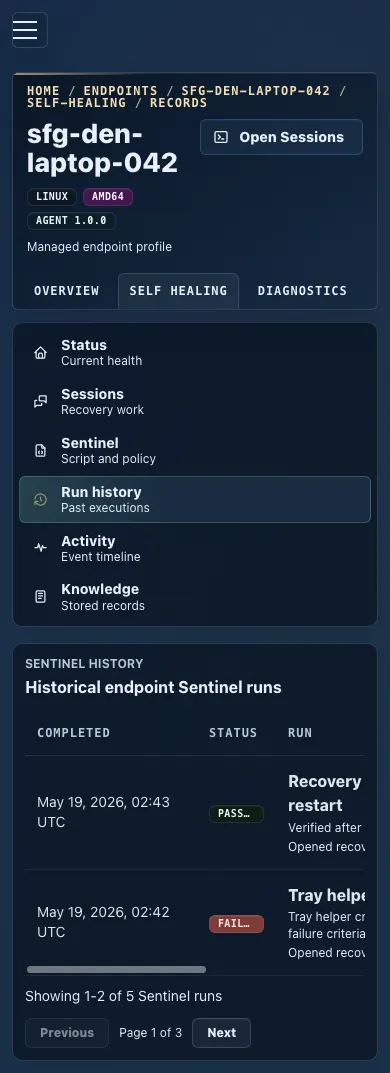
On mobile, Status keeps the same endpoint context, self-healing rail, facts, and activity preview without requiring horizontal scrolling.
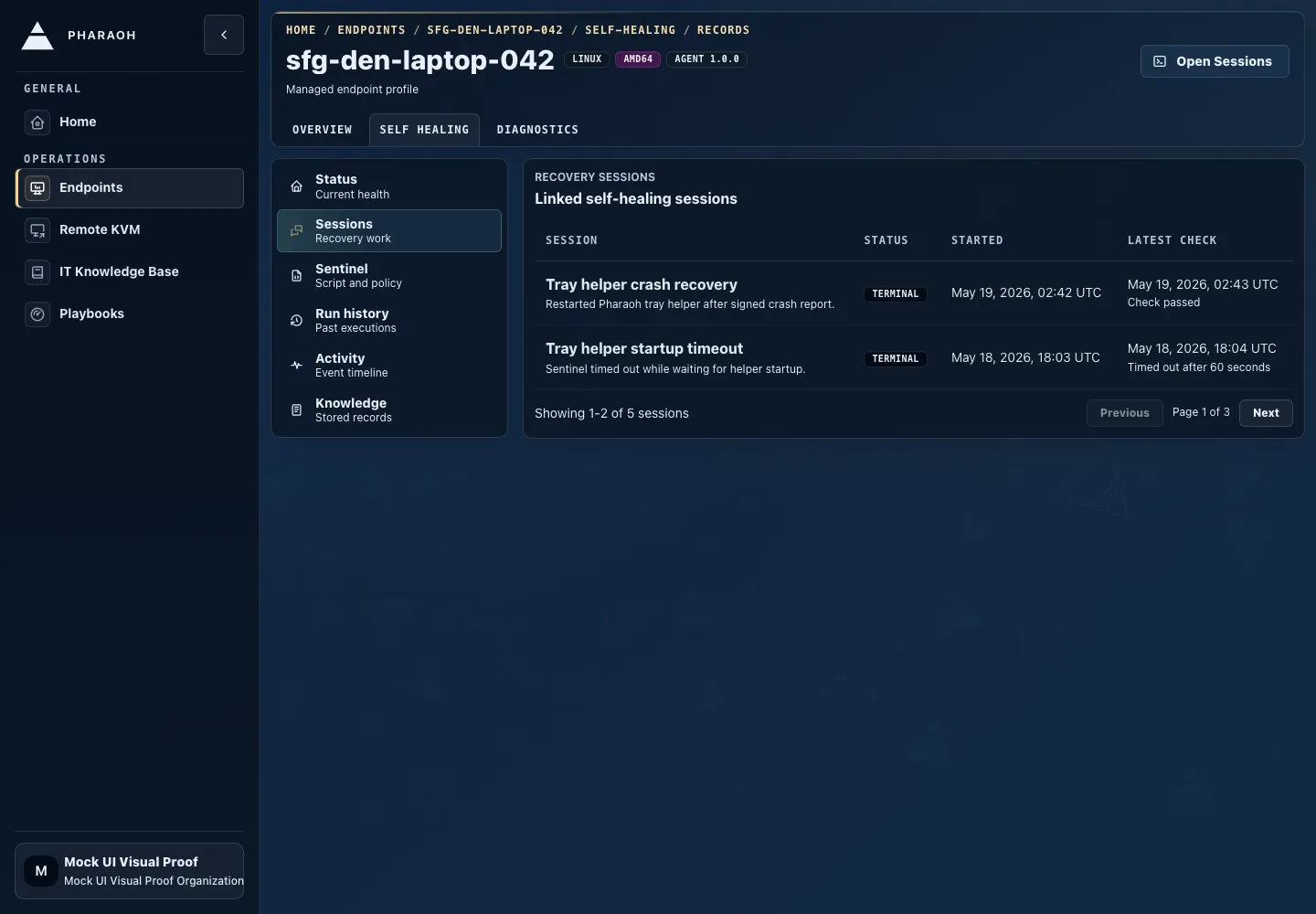
Sessions
- paginated linked recovery-session table for this endpoint
- session status and terminal outcome
- agent thread links when projected
- dates and friendly titles instead of primary ids
- row links into the session or thread when Pharaoh has a target to open
Use Sessions to understand what Pharaoh already attempted and whether the requested action is a continuation of a known recovery path or a new branch of work.
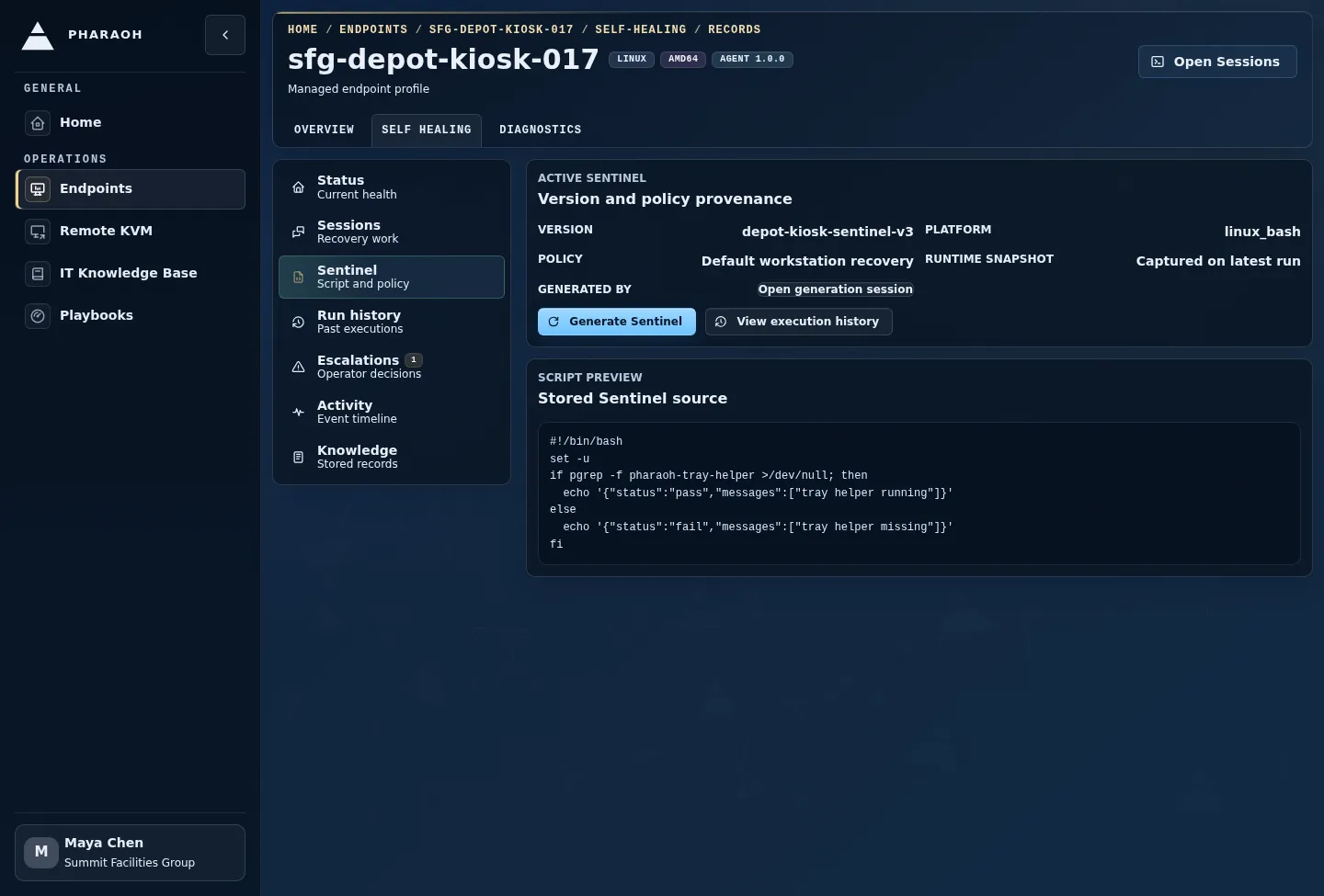
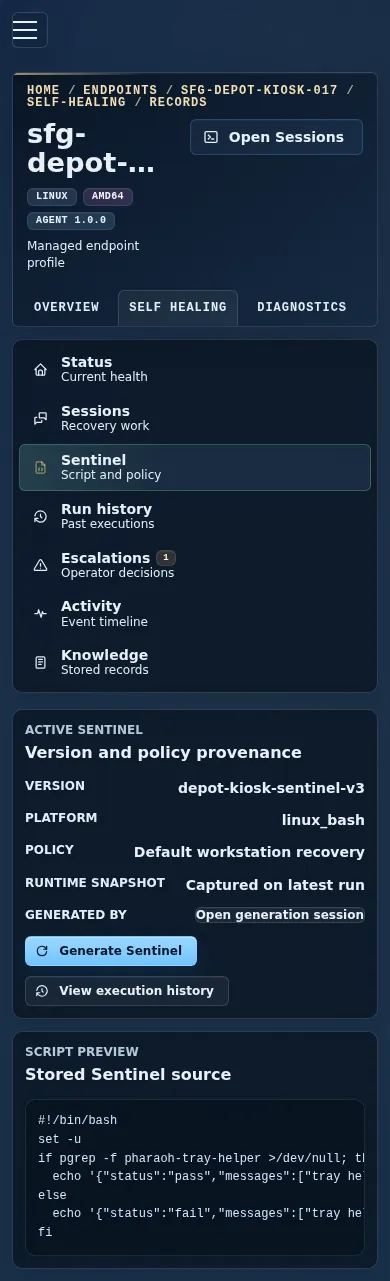
Sentinel
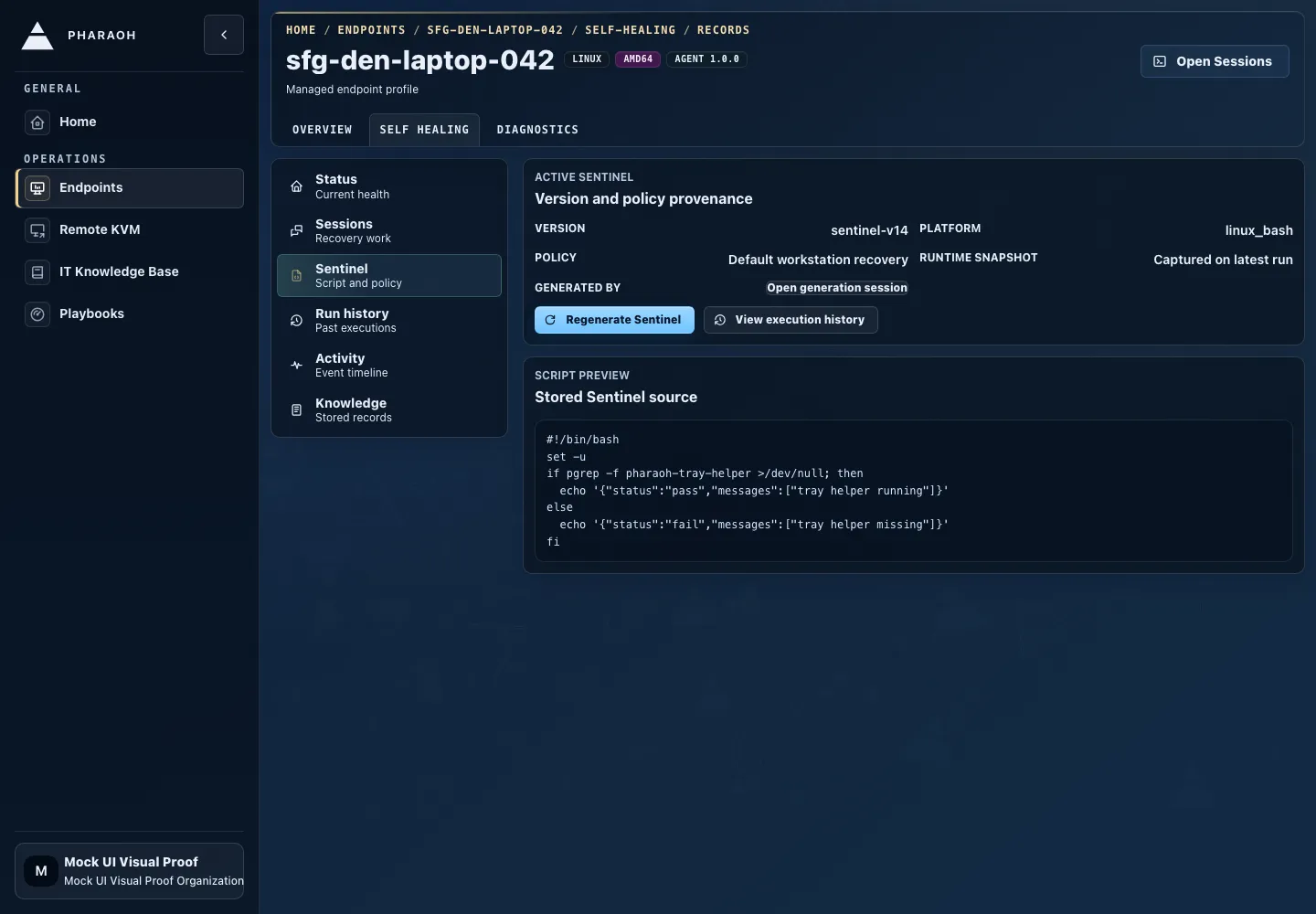
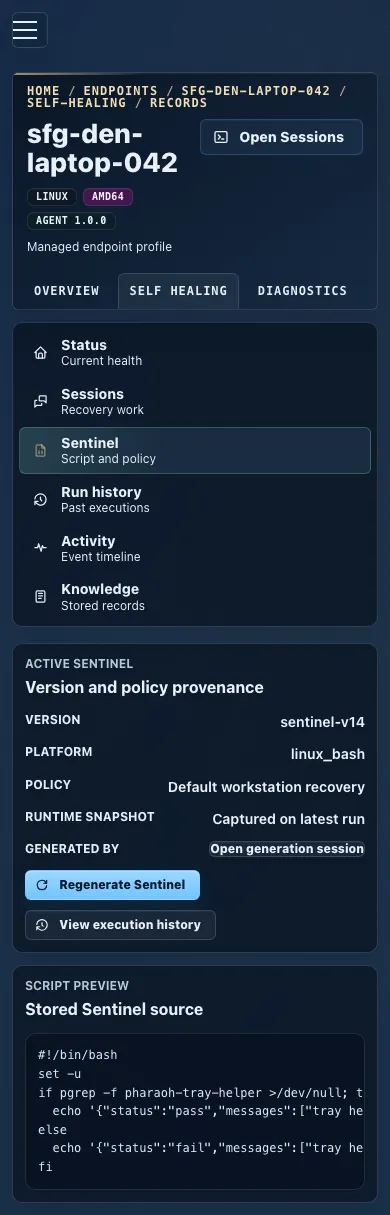
- active Sentinel version and provenance
- generation, validation, and activation context
- latest execution state
- full-width Sentinel source below the provenance and detail cards
Regenerate Sentinelfor starting a bounded Sentinel regeneration flowView execution historyfor moving to the run-history tableView full scriptwhen you need the complete source in a modal
Check Sentinel for recency and consistency. A recent Passed result can support approval for a narrow follow-up. Repeated Failed, Timeout, Policy denied, or Runner error results suggest you should inspect the session and policy context before deciding.
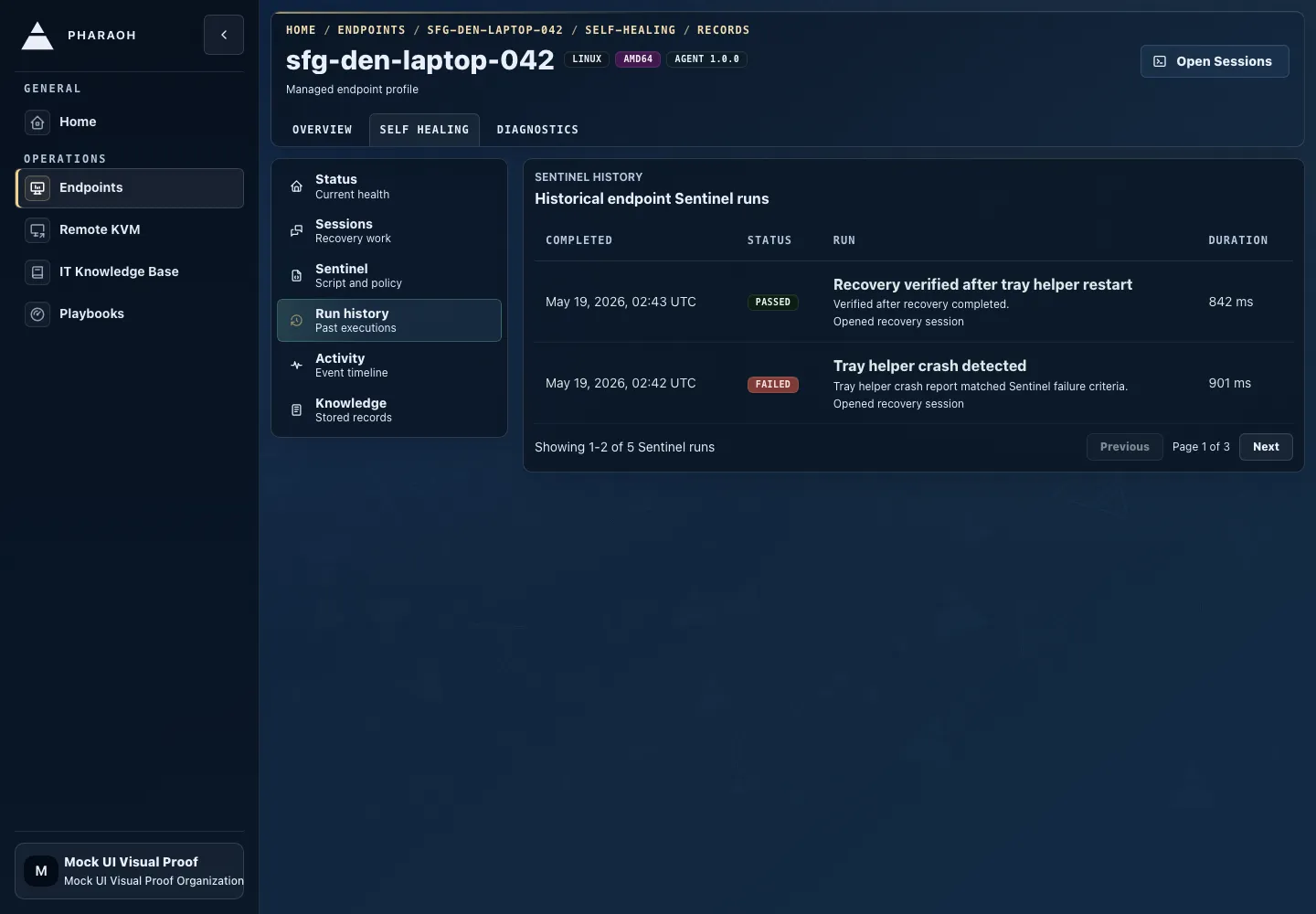
Run history
- paginated historical Sentinel execution table
- generated run titles, status, completed time, and duration
- output summaries and checks when available
- session links for runs that triggered recovery work
- clickable rows or links when there is a related run/session target
Use Run history when the latest result is not enough. A single failed run may be transient; repeated failed, timed out, or policy-denied runs are stronger evidence that approval should slow down.
Escalations
- endpoint-scoped escalation rows tied to the active or historical self-healing work
- pending count and decision status
- links into the escalation review page when an operator decision is required
- provenance for the related session, thread, policy snapshot, and requested action
Use Escalations when the endpoint detail panel or Status view shows that an operator decision is pending. Approve or reject from the escalation review page, then return to endpoint self-healing history to confirm the outcome.
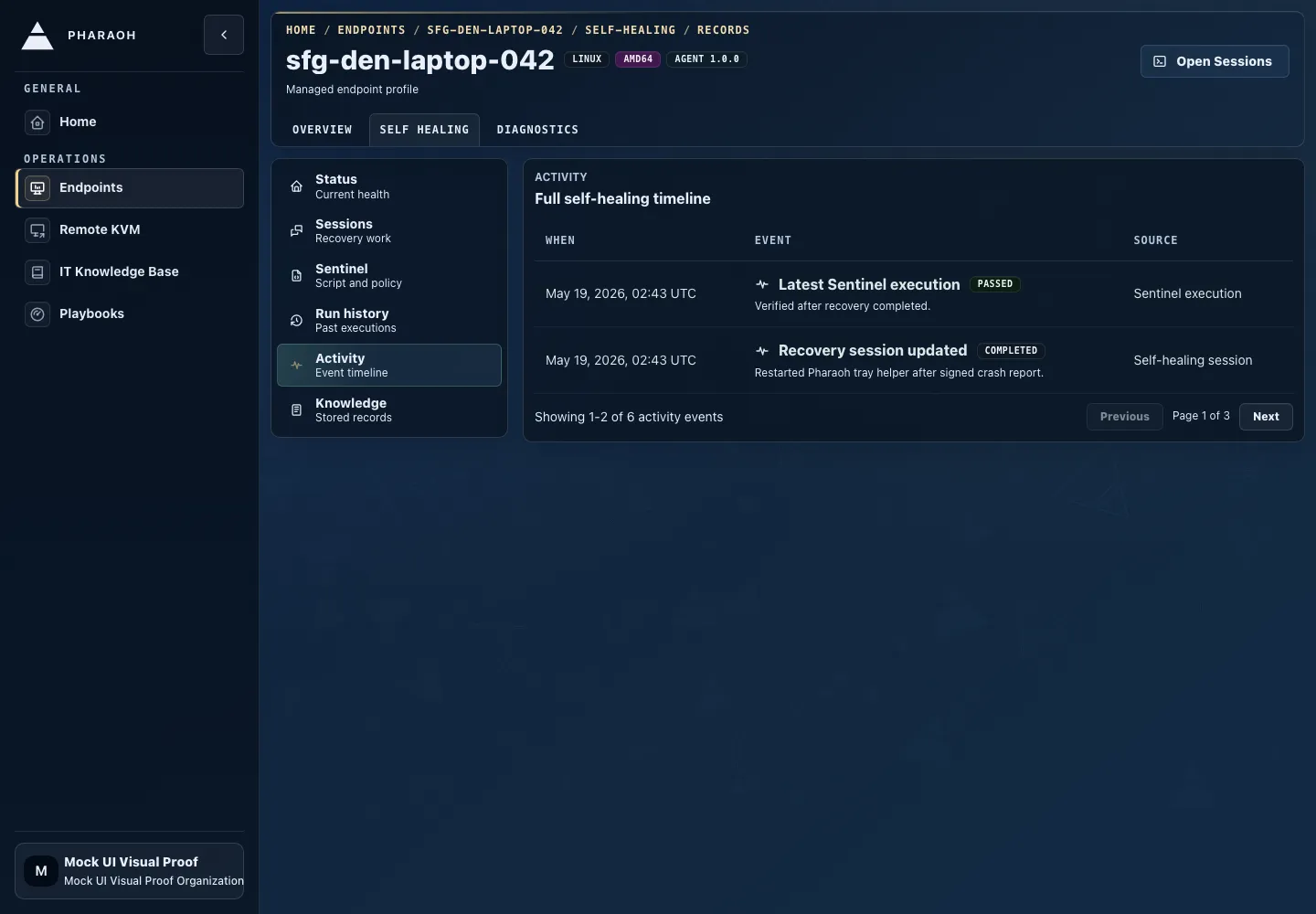
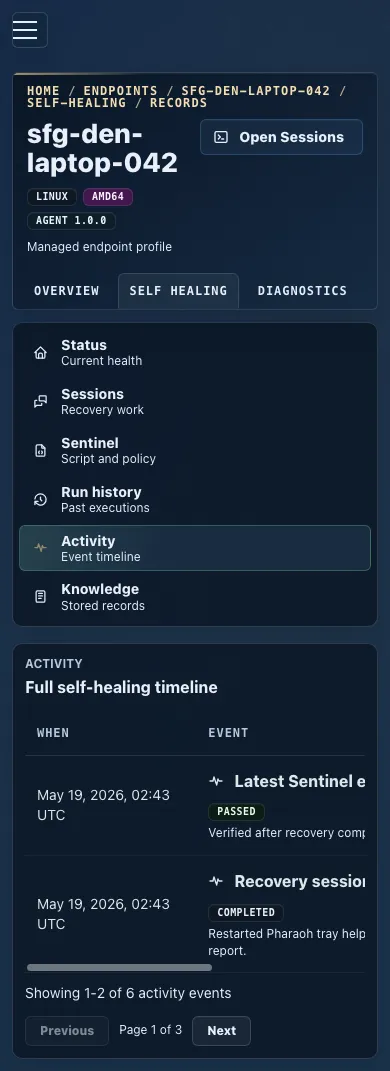
Activity
- combined self-healing activity synthesized from existing Sentinel, session, knowledge-document, and escalation records
- event-specific labels, status, source, and time
- links to the relevant endpoint self-healing subview when available
- pagination for longer histories
Use Activity when you need the complete timeline rather than the short Status preview. The list is a projection for operator review, not a separate audit log or new persisted event store.
Knowledge
- the current endpoint self-healing knowledge document
- document metadata such as revision, source, last update time, and character count
- a 5000-character limit for the document body
Save documentwhen your role can edit endpoint knowledge
Endpoint knowledge is endpoint-specific self-healing memory. Pharaoh stores it as one mutable document per endpoint. Agent outcomes and structured investigation outputs can rewrite the document in place with provenance; authorized operators can also edit and save it with revision protection. Keep the document focused on durable endpoint facts that should help future recovery.
When reviewing knowledge before an escalation decision, look for facts that explain the current failure: known service names, endpoint-specific maintenance windows, hardware limitations, or previously recorded false positives. Do not use the document as a reason to ignore a failed Sentinel execution; failed executions should still create or reuse self-healing work, and incorrect Sentinel behavior should be handled through regeneration.
Organization-wide runbooks and imported support content still live in IT Knowledge Base.
Structured Outcome Cards In Agent Worklogs
Section titled “Structured Outcome Cards In Agent Worklogs”Self-healing sessions write final structured outcomes into the same Agent Core worklog used by endpoint sessions. Pharaoh renders those outcomes as compact operational cards instead of treating the final answer as ordinary prose.
Card types you may see:
Sentinel candidatewhen Sentinel generation or regeneration produced a candidate script, validation state, activation state, and endpoint update dispatch state.Self-healing investigationwith outcomeFixed,False positive,Unable to fix escalated, orIgnored not applicable.Structured output validation failedwhen the assistant could not produce a valid final output after repair attempts.Unknown structured output contractwhen a future contract is visible before the local UI has a purpose-built renderer.
Use the cards as audit evidence. Check the status badge, summary, processing timeline, trace links, and any learning, escalation, or regeneration section before deciding that automation finished correctly. A false-positive card can include a separate regeneration recommendation; that does not mean the active Sentinel changed until validation and activation state confirm it.
Current screenshot replay page IDs for these card states are tracked in the screenshot manifest:
self-healing-candidate-cardself-healing-investigation-card-fixedself-healing-investigation-card-false-positiveself-healing-investigation-card-escalatedagent-core-structured-output-validation-failureagent-core-structured-output-unknown-fallback
Success Checks
Section titled “Success Checks”After reviewing endpoint self-healing state, confirm the operational outcome:
- reopen the endpoint self-healing page and check the latest Sentinel, session, and escalation history
- confirm the endpoint’s current state matches the reason for the decision
- look for repeated escalations from the same endpoint before treating the issue as resolved
- document any durable endpoint-specific learning in the endpoint knowledge document when it will help future recovery